JETCAM Unfolding Module: 3D sheet metal unfolding for JETCAM Expert
Full automation from 3D to NC
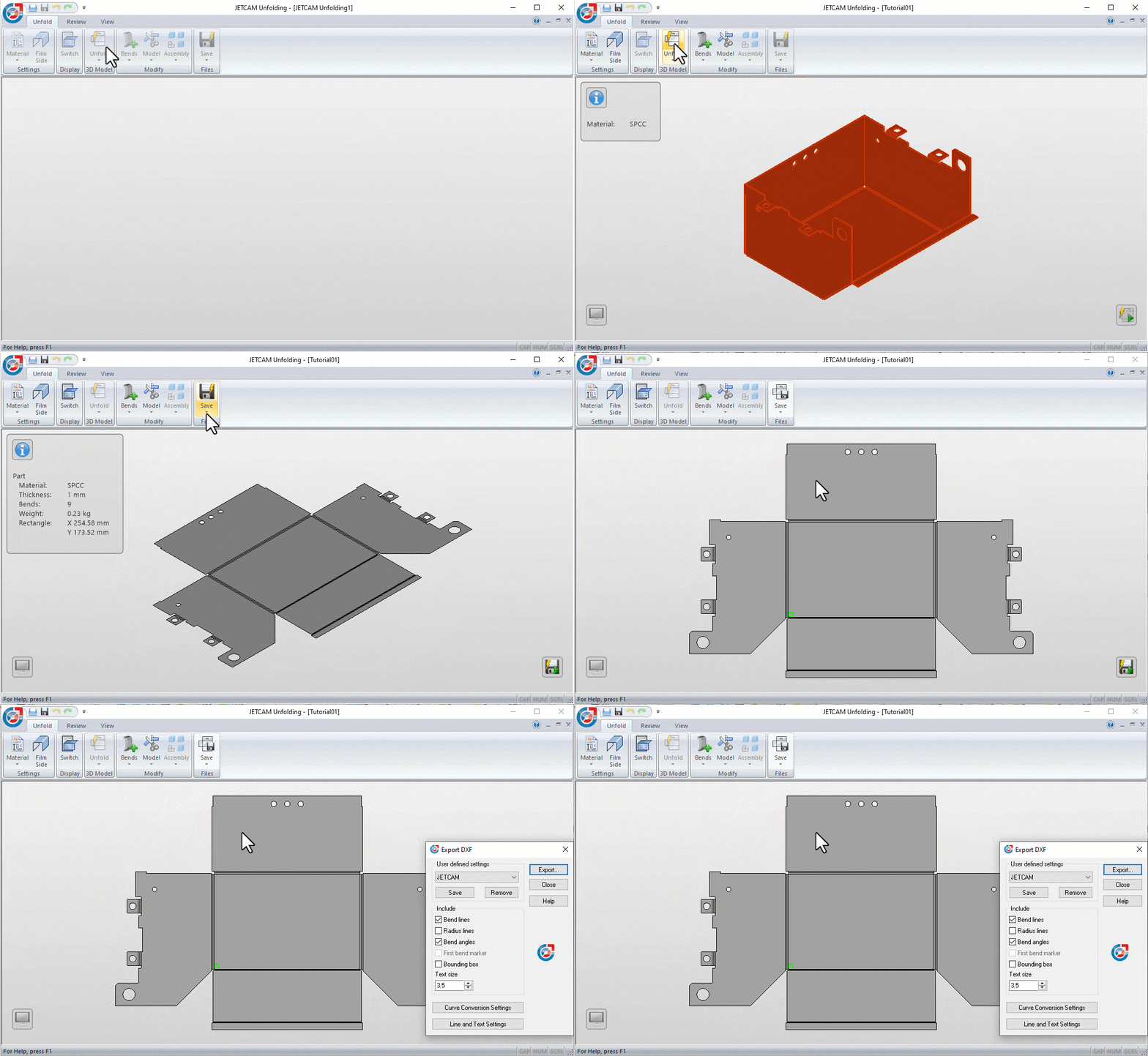
Unfolding all popular formats
Adapt to production
Standalone or Floating
Ready for production
From 3D to NC in 60 seconds
When you combine JETCAM Unfolding with JETCAM Orders Controller you can feed a CSV file containing any number of 2D or 3D parts for CAD import and nesting.
In this video you can see JETCAM Orders Controller Premium Automation using RCP (Remote Control Processing) to feed a series of parts to JETCAM Expert, which in turn is silently unfolding them in the background, before applying tooling.
As the CSV also contains the number of parts to order, we can move straight to nesting, with optimised nests and NC code available in under a minute.
Comprehensive CAD Interface
While the JETCAM Unfolding Module can be used as a standalone module, the Unfolding CAD Interface connects it to JETCAM Expert, allowing parts to be silently unfolded and automatically opened in the background, as if they were 2D files.
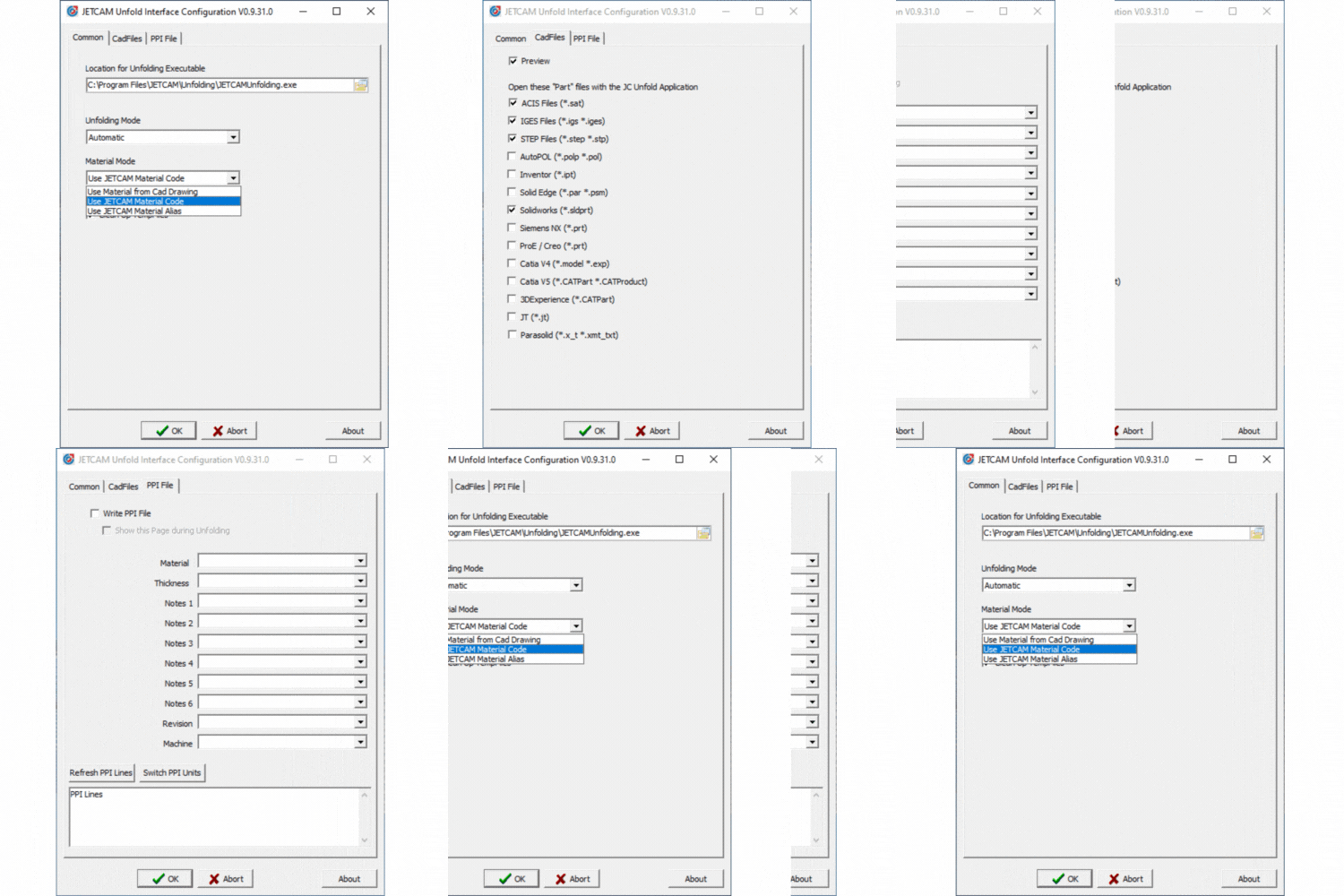
Select which 3D files you wish to support within JETCAM Expert, set whether you wish to pass materials from JETCAM Expert to the Unfolding Module, or to read material from supported 3D files, and choose whether to run in interactive mode (opening the interface to review your 3D file) or completely automatically.
You can also choose to generate PPI data and select which fields to generate.
*All JETCAM CAD Interfaces require a current JETCAM maintenance contract
Quick splitting of assemblies
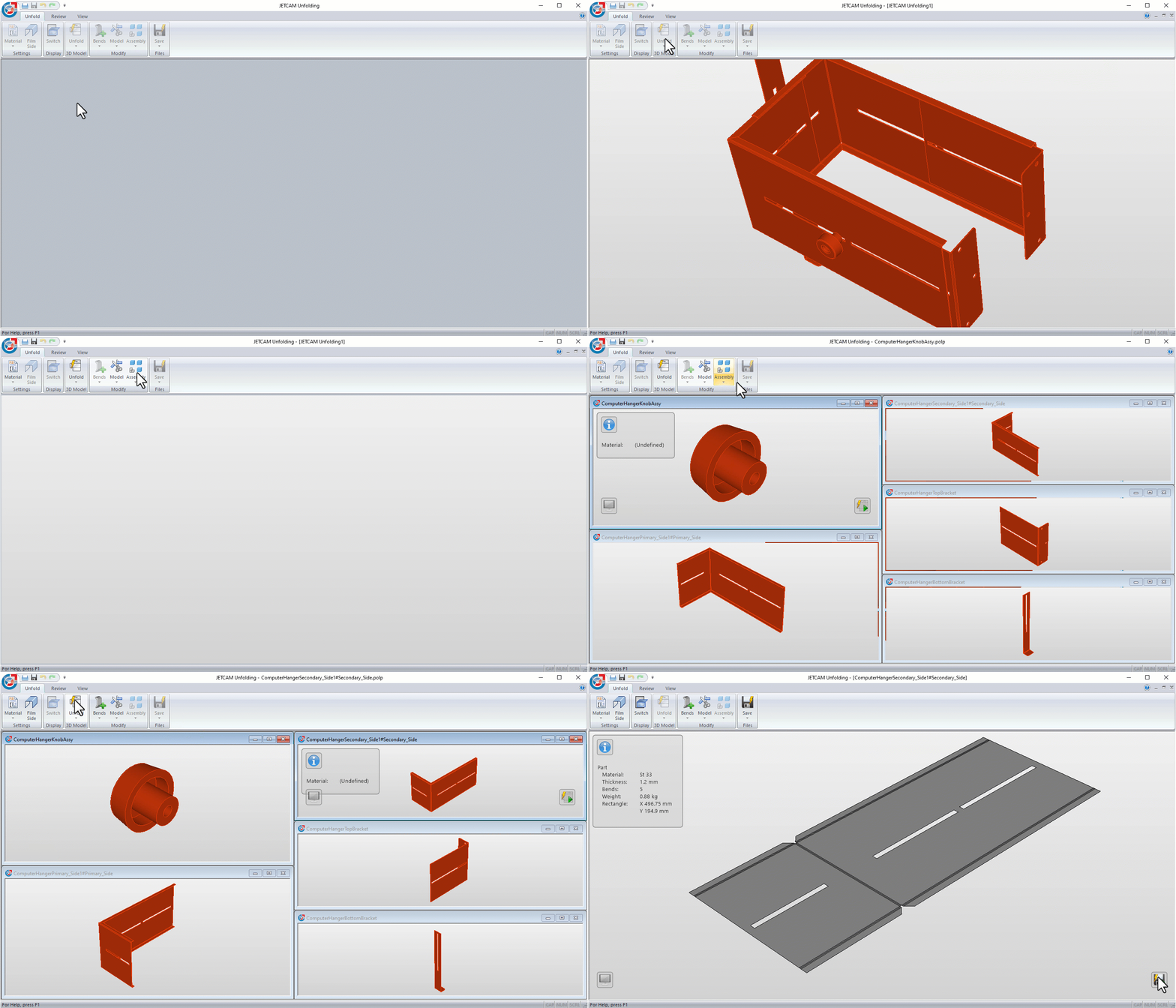
The JETCAM Unfolder also supports assemblies. Simply open a 3D assembly file and click the Assembly button to explode it into its individual components. Then, select a component, click Unfold and you're ready to export it to DXF for CAD import and nesting.
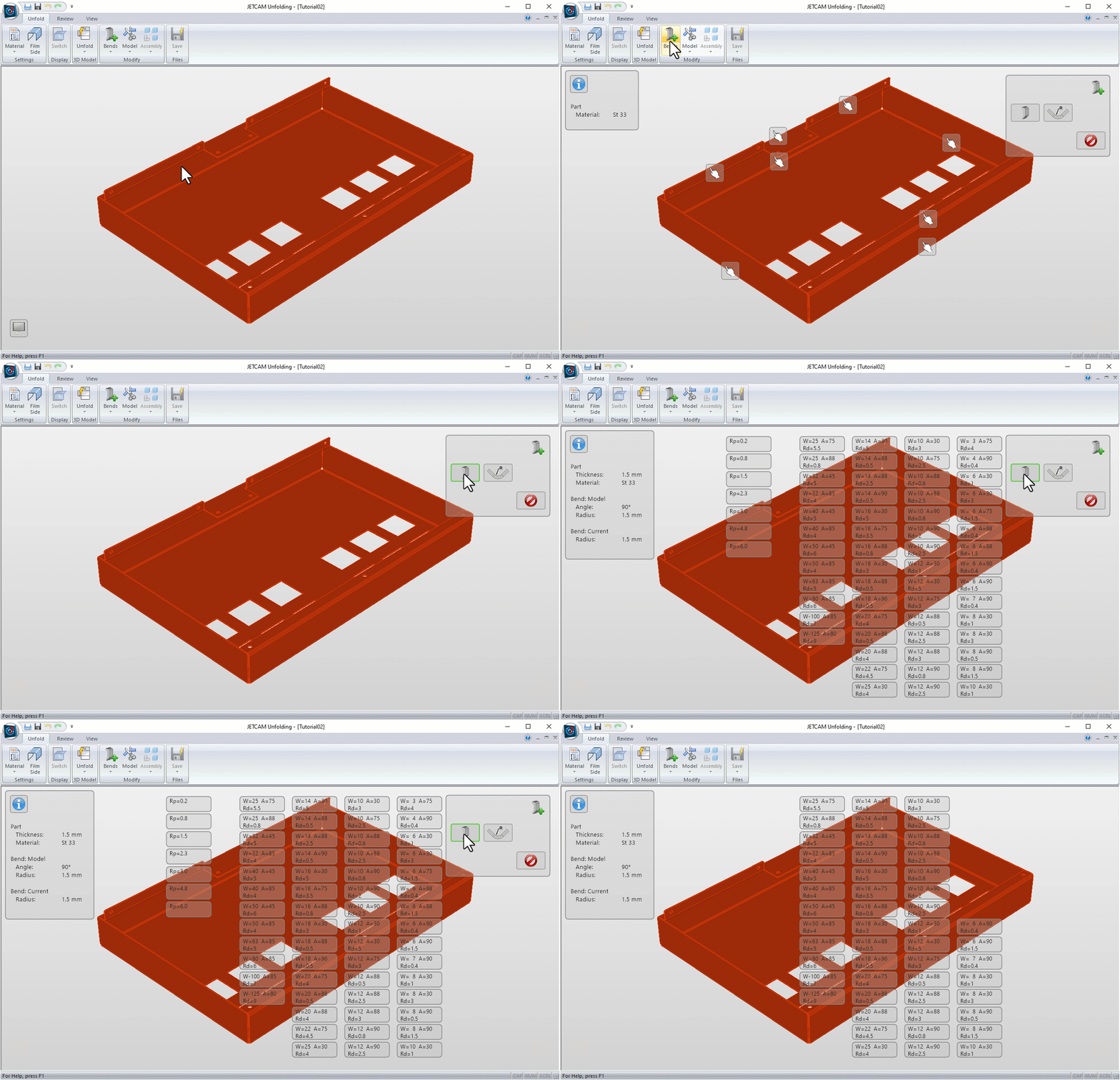
Tooling
Types of license available
License option: None required, this is the standard license type.
License host: License is hosted on and tied to the Client computer.
Software use: Software is installed and used locally on the Client computer and multiple instances can run at the same time.
Internet connection: Required, on the client computer, to activate/verify/update/return the license. It can be offline up to 7 days before access to the Cloud Server is required to verify the license again.
Internet access must be direct and cannot go through a Proxy/VPN.
License verification and update: License verifies and updates itself automatically, on a regular basis, when the internet connection is available. This can also be initiated manually from the License Manager.
Virtual Machines (VMs): Software cannot be used within a VM, for example VMware, VirtualBox or Hyper-V.
Remote Sessions: Software cannot run on a remote session, for example Remote Desktop or Windows Terminal Server
License option: Network required.
License host: License is hosted on and tied to the On-site Server. This license server limits the number of simultaneous users, based on the number of available licenses.
Software use: Software is installed and used locally on the Client computer(s). Each client can run multiple instances of the software at the same time but consumes only 1 license.
The number of available licenses limits the number of allowed simultaneous clients.
Internet connection: Required, on the license server, to activate/verify/update/return the license. It can be offline up to 7 days before access to the Cloud Server is required to verify the license again.
Internet access must be direct and cannot go through a Proxy/VPN.
License verification and update: License verifies and updates itself automatically, on a regular basis, when the internet connection is available. This can also be initiated manually from the License Manager.
Virtual Machines (VMs): Supports VMs
Remote Sessions: Supports remote sessions.
License option: On-premise required.
License host: License is hosted on and tied to the Client computer.
Software use: Software is installed and used locally on the Client computer and multiple instances can run at the same time.
Internet connection: Not required on the Client computer.
License verification and update: License must be verified and updated every 6 months.
If no internet connection is available, a manual process is used. During this process, License Admin Files are transferred back and forth between the client and another computer, where internet connection is required to access AutoPOL Portal.
At the portal there is a simple guide to follow, giving you the verified license to take back.
If an internet connection is available, even if just temporarily, this update process can be initiated and performed automatically with a single click in the client License Manager.
Virtual Machines (VMs): Software cannot be used within a VM, for example VMware, VirtualBox or Hyper-V.
Remote Sessions: Software cannot run on a remote session, for example Remote Desktop or Windows Terminal Server.
License options: Network & On-premise required.
License host: License is hosted on and tied to the On-site Server. This license server limits the number of simultaneous users, based on the number of available licenses.
Software use: Software is installed and used locally on the Client computer(s). Each client can run multiple instances of the software at the same time but consumes only 1 license.
The number of available licenses limits the number of allowed simultaneous clients.
Internet connection: Not required on the license server or client computer(s).
License verification and update: License must be verified and updated every 6 months.
If no internet connection is available, a manual process is used. During this process, License Admin Files are transferred back and forth between the license server and another computer, where internet connection is required to access AutoPOL Portal.
At the portal there is a simple guide to follow, giving you the verified license to take back.
If an internet connection is available, even if just temporarily, this update process can be initiated and performed automatically with a single click in the server License Manager.
Virtual Machines (VMs): Supports VMs
Remote Sessions: Supports remote sessions.
Supported file formats
| 3D File Import | Extension(s) |
| Acis | .sat |
| Catia V4 | .model .exp |
| Catia V5 | .CATPart .CATProduct |
| 3DExperience | .CATPart .CATProduct |
| ProE / Creo | .prt .asm |
| IGES | .igs .iges |
| Inventor | .ipt .iam |
| JT | .jt |
| Parasolid | .x_t .xmt_txt |
| Siemens NX | .prt |
| Solid Edge | .par .asm .psm |
| Solidworks | .sldprt .sldasm |
| STEP | .stp .step |
| 3D File Export | |
| Acis | .sat |
| STEP | .stp |
| 2D File Export | |
| Drawing eXchange Format | .dxf |
| Trumpf GEO | .geo |
System Requirements
| Software | 64-bit Microsoft Windows 10 or newer. |
| Hardware | 64-bit Intel or AMD, 2.0 GHz or faster processor |
| 4 GB RAM (8 GB or more recommended) | |
| 5 GB of free disk space | |
| Graphics card with 1 GB. | |
| Minimum 1280×900 display resolution | |
| Mouse (wheel mouse recommended) | |
| Graphics | JETCAM Unfolding takes advantage of 3D Graphics hardware. To use JETCAM unfolding with OpenGL, the OpenGL driver provided by the 3D graphics card vendor must have full support of OpenGL 3.3 or later. |
| Rights | Before installing, make sure you have read and write access rights to the following locations for the proper installation and execution of the software: |
| JETCAM installation folders | |
| Windows system folder | |
| System registry | |
| Virtual Machines | Running JETCAM Unfolding on Virtual Machines (VMs), for example Remote Desktop or RemoteApp, requires a Network license. Standalone licenses are not supported in virtual environments. |
| Network License | To use a network license of JETCAM Unfolding you need to have a Windows Network with TCP/IP support. |