Top 10 key features of JOC Lite
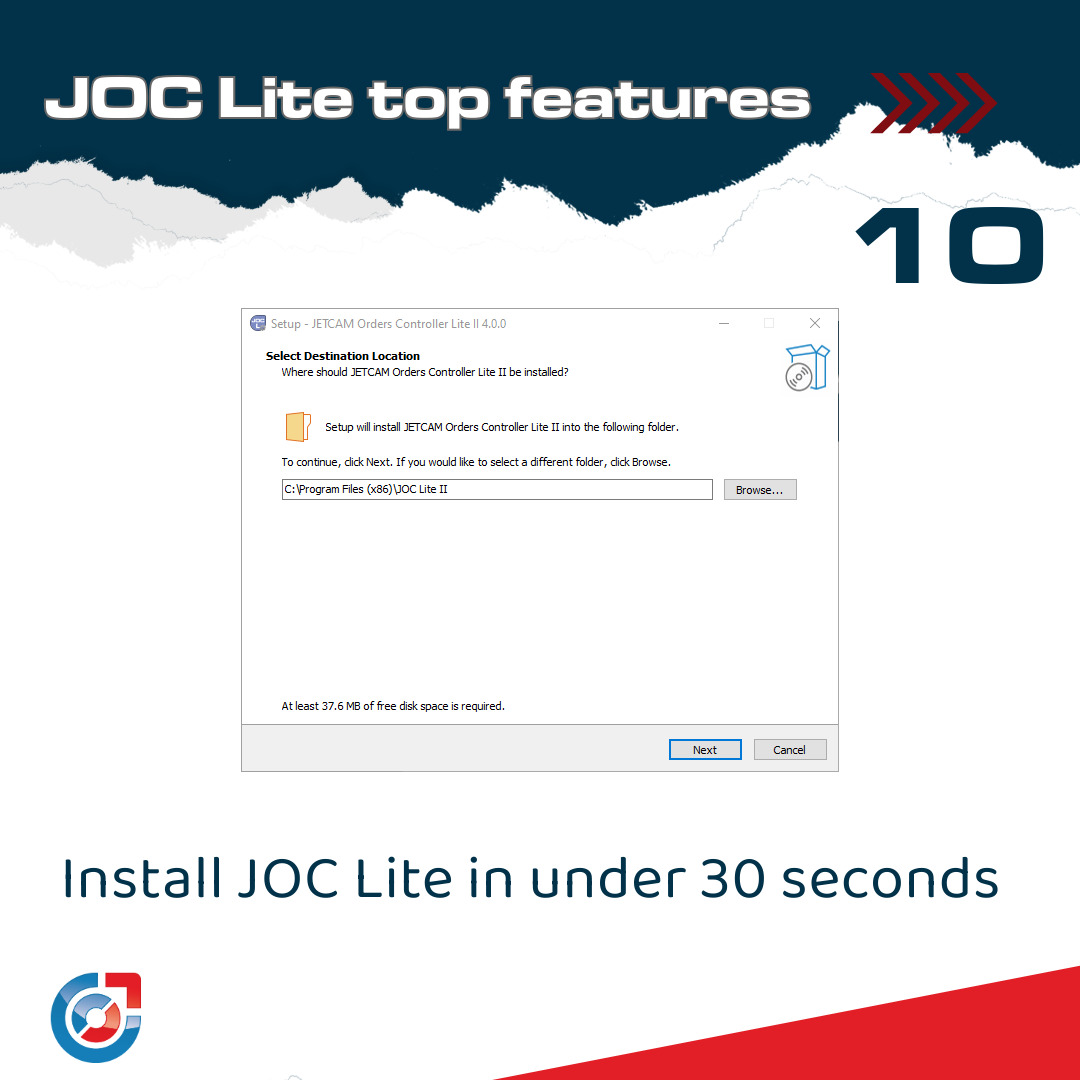
Fast installation
JOC Lite can be installed and configured literally in seconds, with only two fields to configure. You are immediately up and running, with all your JETCAM components and nests automatically added to JOC Lite.
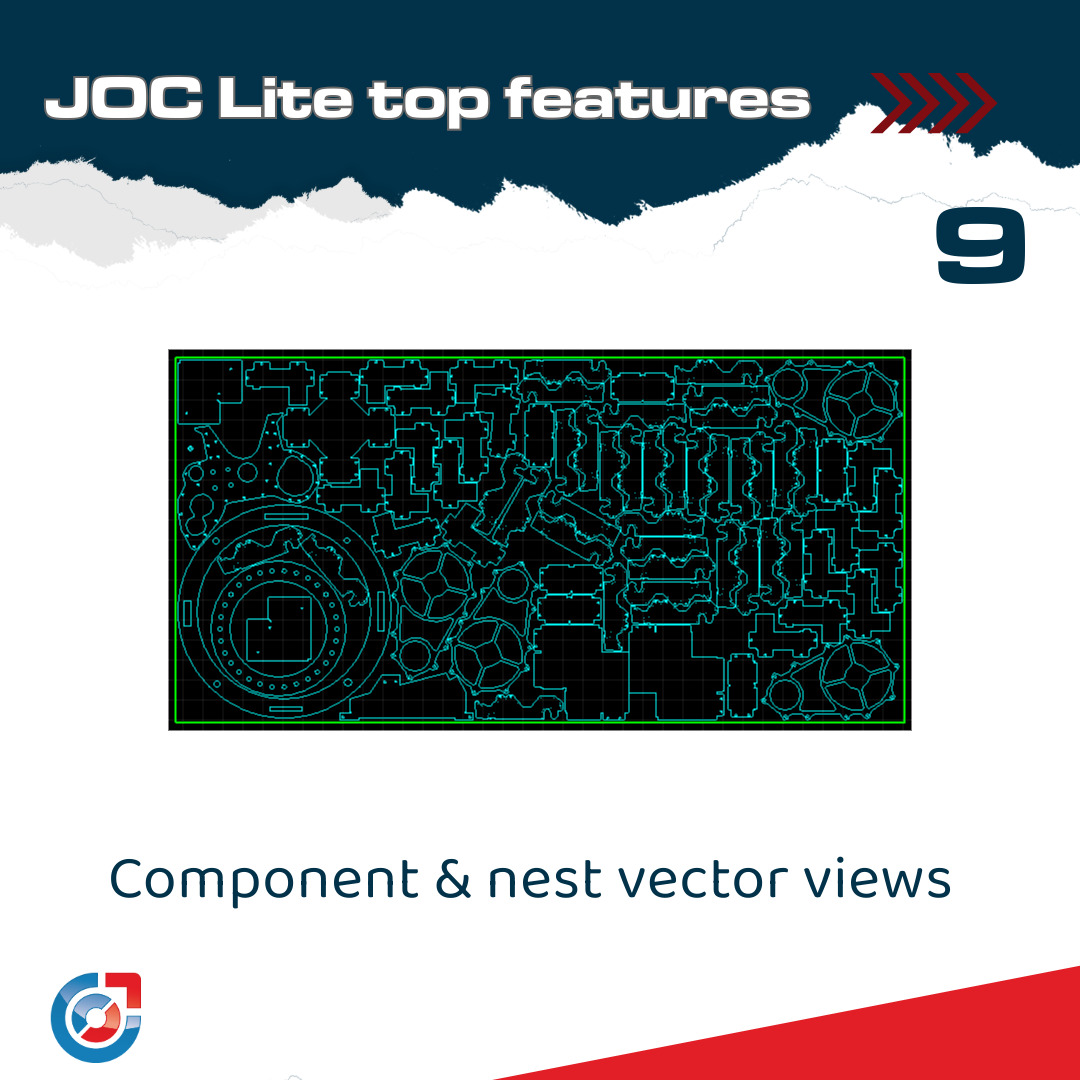
Vector View
The components, assemblies and nests screens all include powerful vector views, which include pan and zoom features.
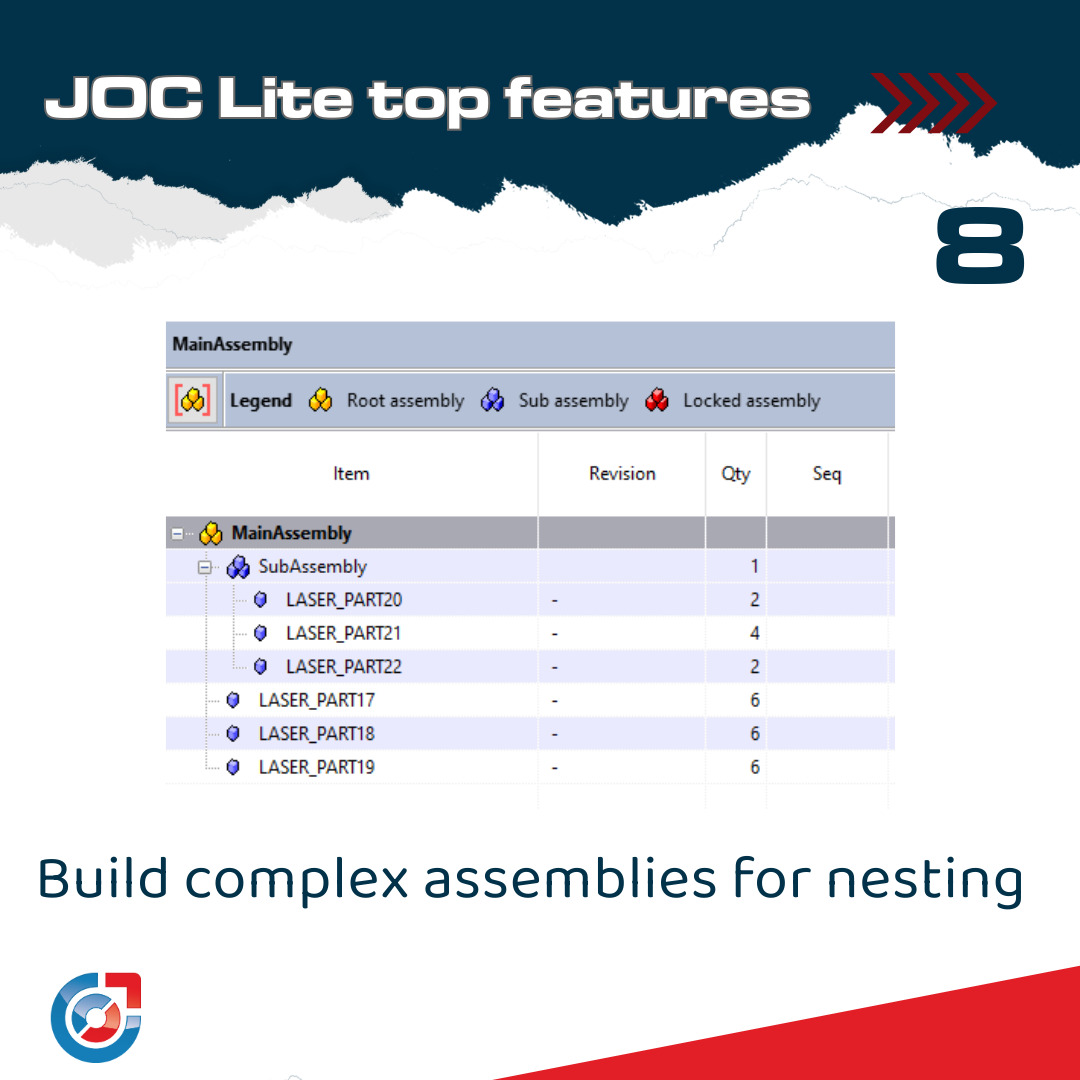
Assembly Management
JOC Lite allows you to build complex assemblies, with sub assemblies and revisions control. Once built, you can simply drag and drop them onto the orders list, ready for nesting.
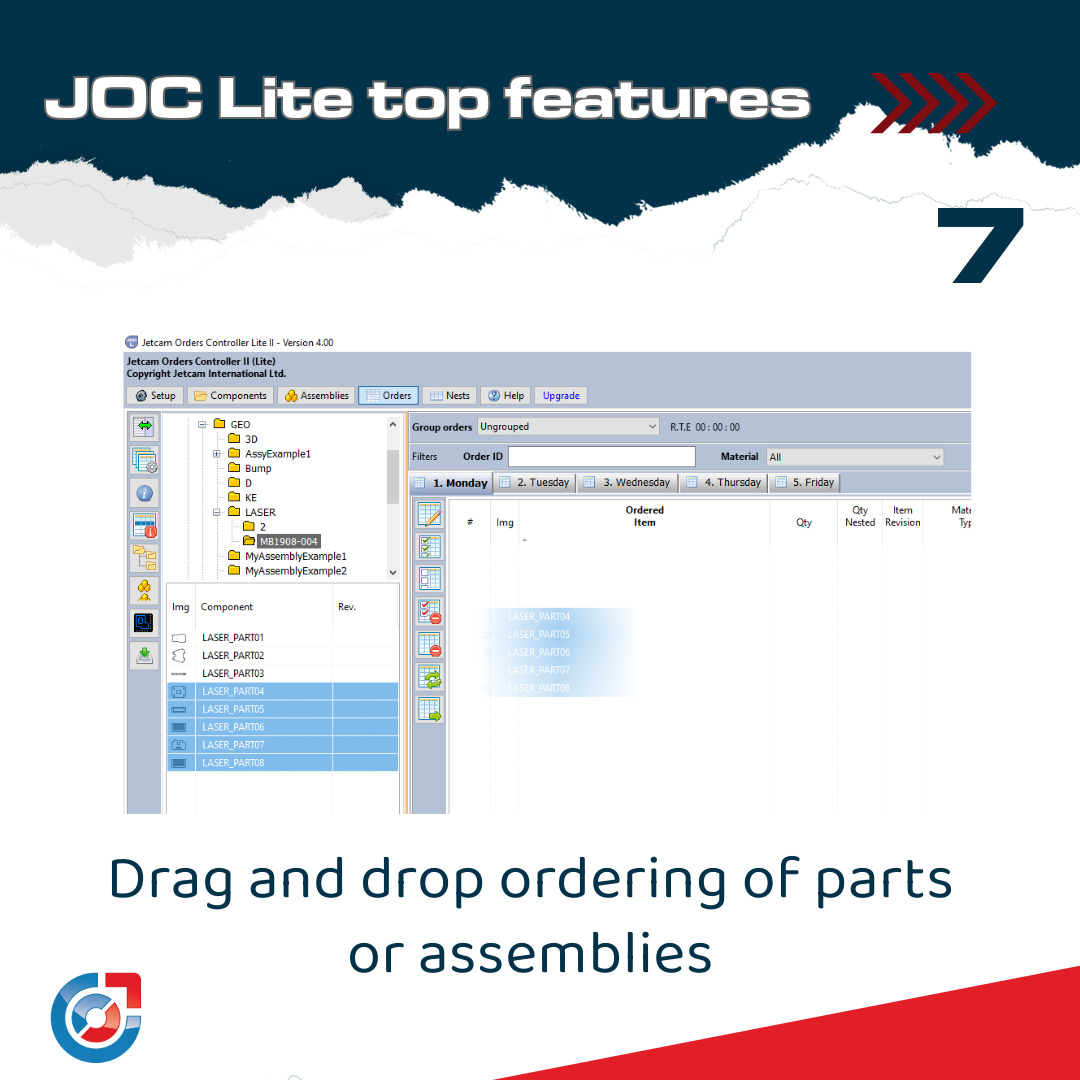
Drag and drop functionality
You can use drag and drop in various locations within JOC Lite. Whether it's dragging components onto an assembly, or parts or assemblies onto a worksheet, this is the most simple and intuitive way to build lists of components to send for nesting in JETCAM Expert.
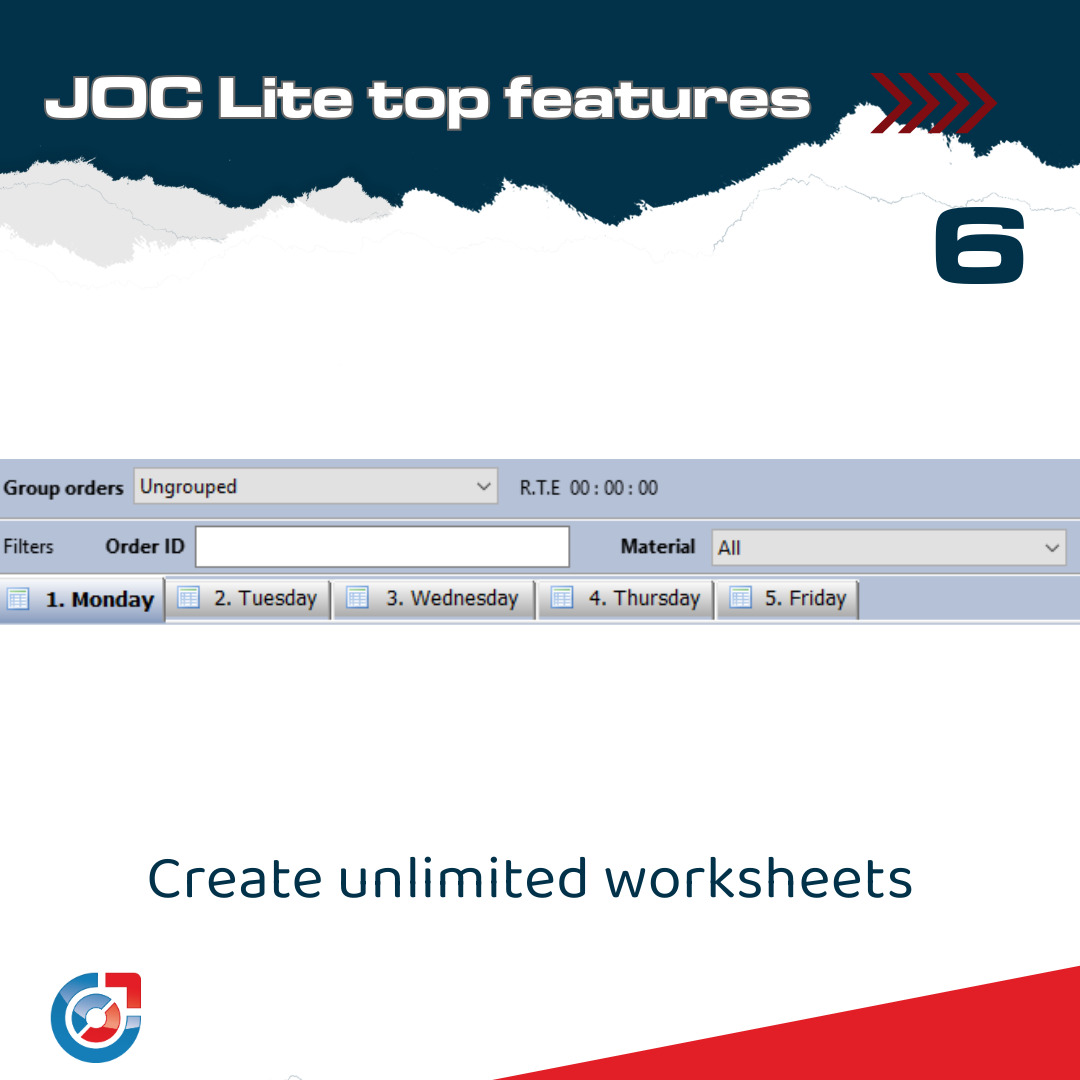
Create unlimited worksheets
Whether you want to separate jobs by day of the week, machine or shift patterns, JOC Lite allows you to create an unlimited number of worksheets, which you can then populate with components or assemblies.
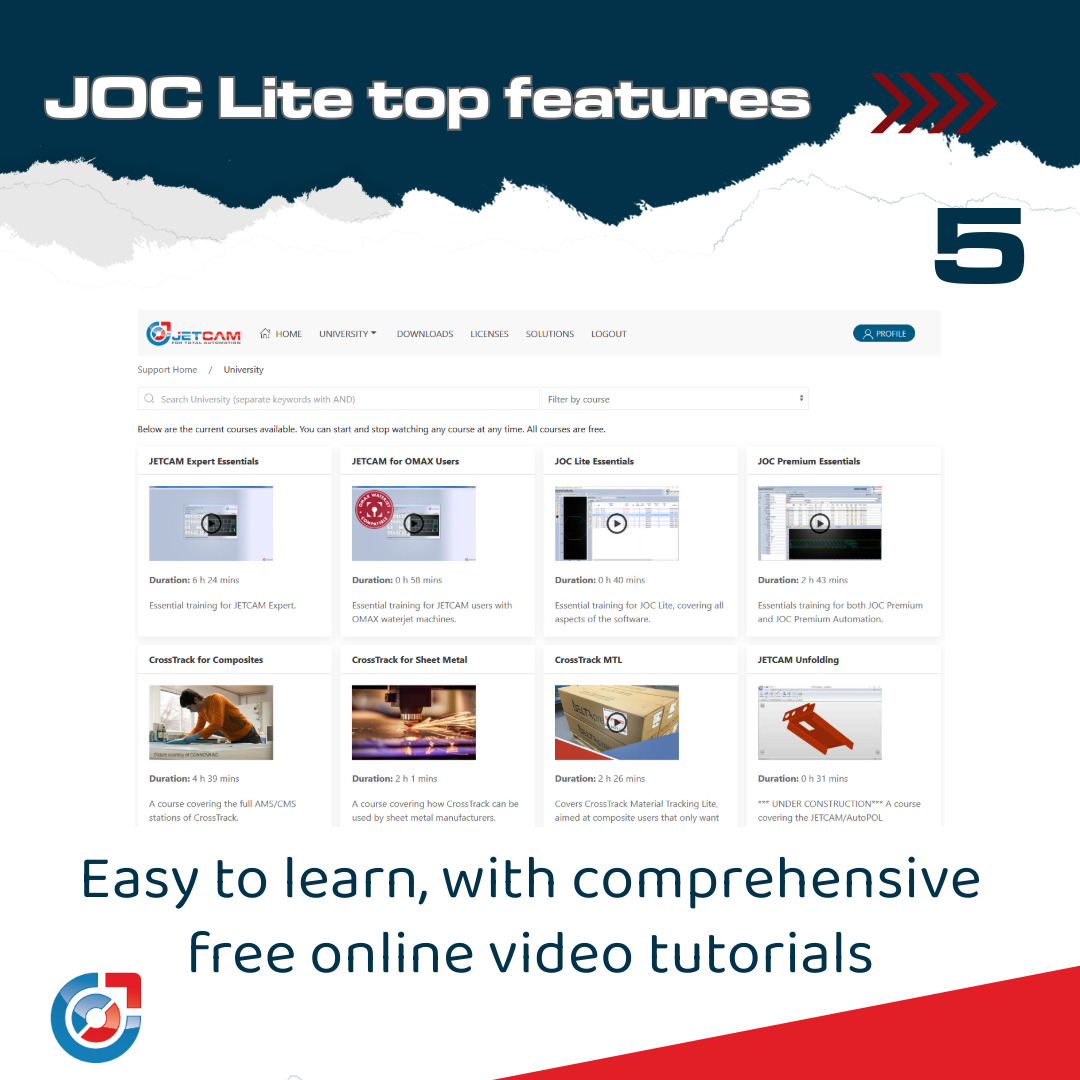
Comprehensive video library in the University
Although JOC Lite is incredibly fast to learn, the University course will have staff fully trained in all features in under an hour.
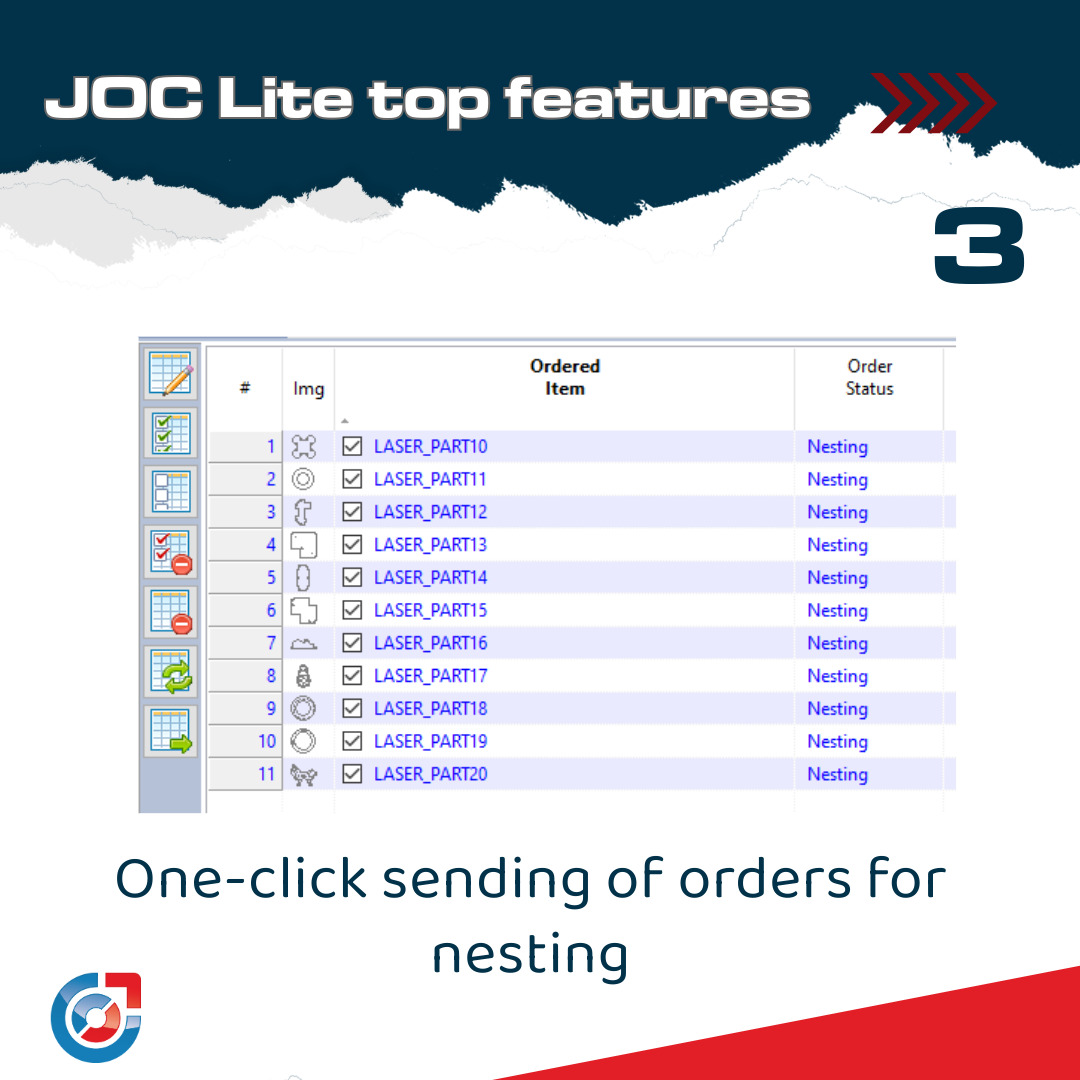
Order grouping and filtering
The orders tab allows you to group orders by machine, material, order ID or custom data. The nesting grouping is particularly useful, as you can then tag parts within a specific group and send only them for nesting.
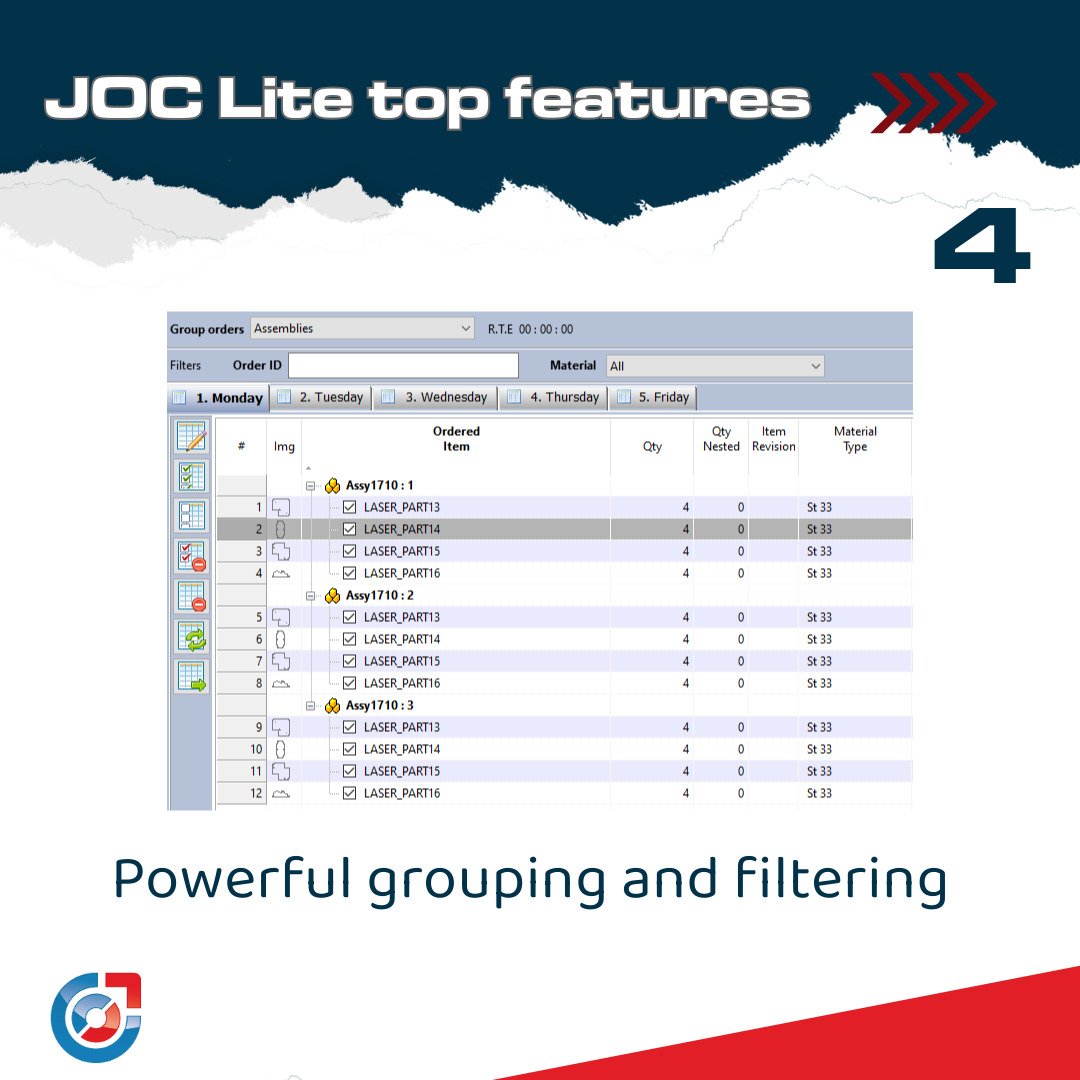
One-click ordering to JETCAM
Once you've created your order list, a single click send the parts to JETCAM's order list, ready for nesting. You can continue to build further order lists, and these can also be queued for processing, which will start as soon as the current orders finish nesting.
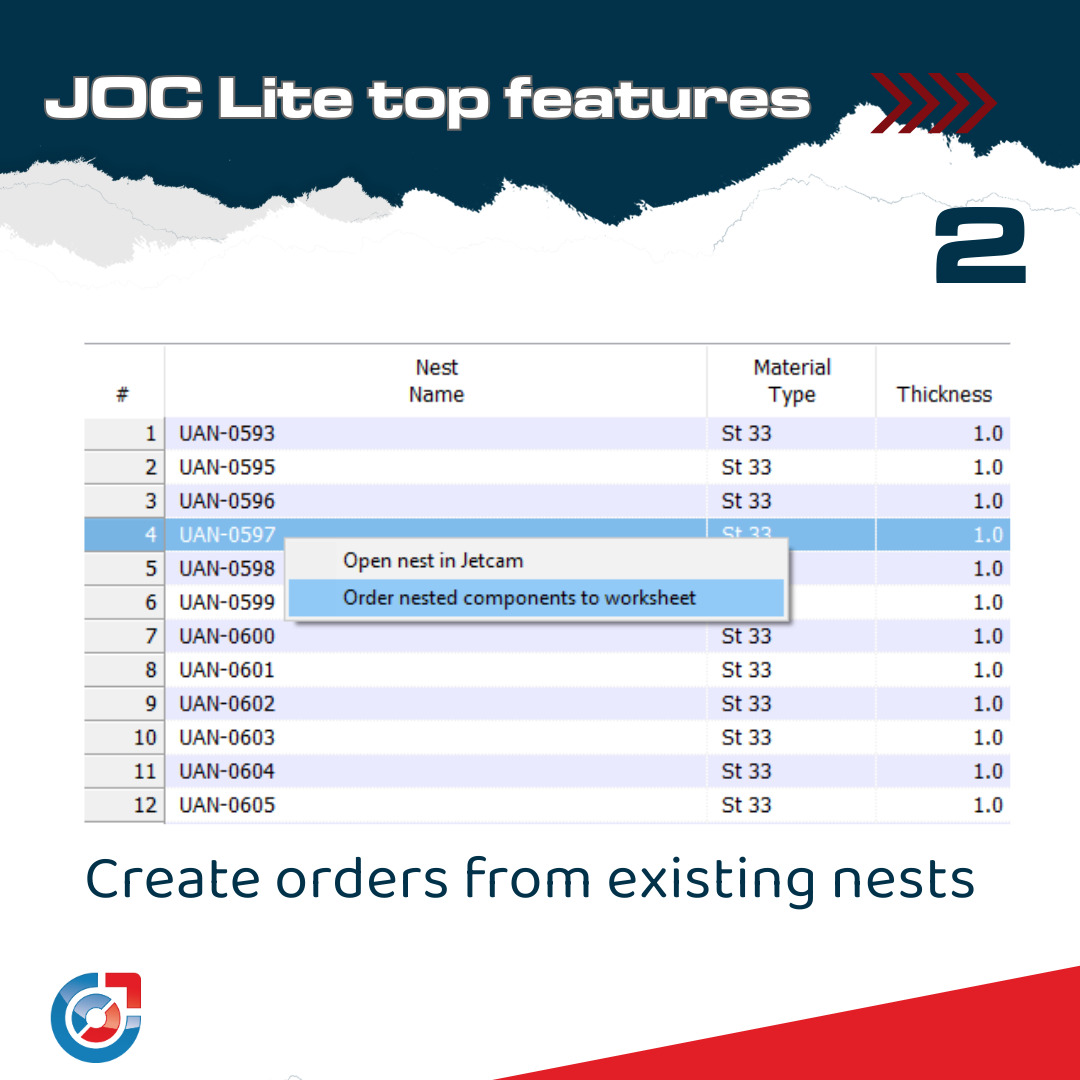
Create orders for parts from existing nests
New to JOC Lite 4: Right-click over any nest and select 'Create orders from nest' to re-order all parts. This is a great way to quickly create dynamic nests of previously nested parts or complete assemblies.
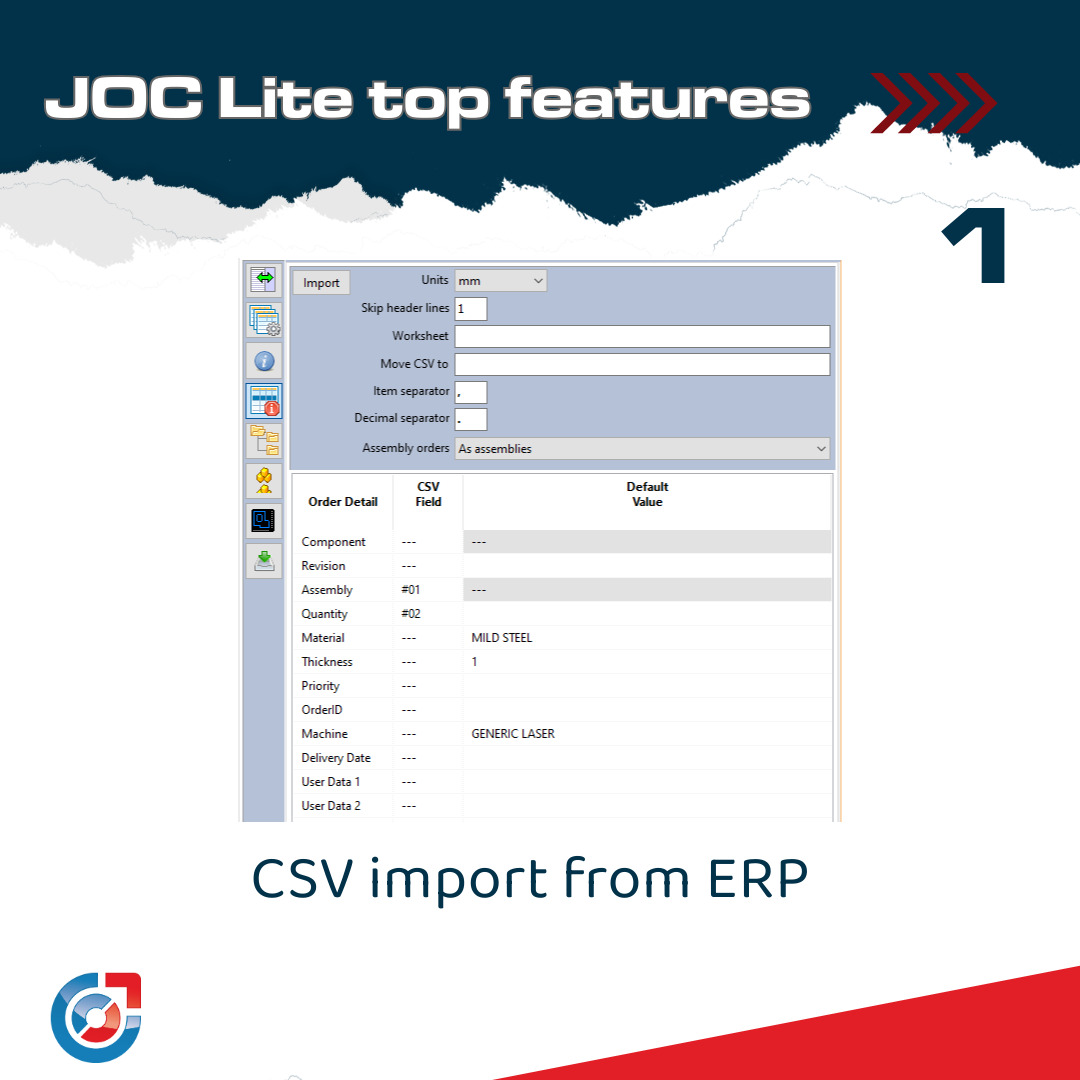
CSV import of parts or assemblies from MRP/ERP systems
Link your MRP/ERP system to JETCAM Expert by setting JOC Lite to import CSV lists of either components or assemblies. Settings are remembered, making the process take just a few seconds. You can even specify different worksheets to import to.
Fast installation
JOC Lite can be installed and configured literally in seconds, with only two fields to configure. You are immediately up and running, with all your JETCAM components and nests automatically added to JOC Lite.
Vector View
The components, assemblies and nests screens all include powerful vector views, which include pan and zoom features.
Assembly Management
JOC Lite allows you to build complex assemblies, with sub assemblies and revisions control. Once built, you can simply drag and drop them onto the orders list, ready for nesting.
Drag and drop functionality
You can use drag and drop in various locations within JOC Lite. Whether it's dragging components onto an assembly, or parts or assemblies onto a worksheet, this is the most simple and intuitive way to build lists of components to send for nesting in JETCAM Expert.
Create unlimited worksheets
Whether you want to separate jobs by day of the week, machine or shift patterns, JOC Lite allows you to create an unlimited number of worksheets, which you can then populate with components or assemblies.
Comprehensive video library in the University
Although JOC Lite is incredibly fast to learn, the University course will have staff fully trained in all features in under an hour.
Order grouping and filtering
The orders tab allows you to group orders by machine, material, order ID or custom data. The nesting grouping is particularly useful, as you can then tag parts within a specific group and send only them for nesting.
One-click ordering to JETCAM
Once you've created your order list, a single click send the parts to JETCAM's order list, ready for nesting. You can continue to build further order lists, and these can also be queued for processing, which will start as soon as the current orders finish nesting.
Create orders for parts from existing nests
New to JOC Lite 4: Right-click over any nest and select 'Create orders from nest' to re-order all parts. This is a great way to quickly create dynamic nests of previously nested parts or complete assemblies.
CSV import of parts or assemblies from MRP/ERP systems
Link your MRP/ERP system to JETCAM Expert by setting JOC Lite to import CSV lists of either components or assemblies. Settings are remembered, making the process take just a few seconds. You can even specify different worksheets to import to.